Immediate Fix: The Graphics Driver Restart
When you are stuck on a black screen before the login prompt, the most effective immediate fix is a keyboard shortcut that forces Windows to reinitialize the display driver. This often clears hangs caused by communication errors between the OS and the GPU.
Press Windows Key + Ctrl + Shift + B. You will hear a short beep and the screen will blink or flicker for a moment while the driver restarts. In many cases, the login screen will appear immediately after.
If the shortcut fails, perform a “Hard Reset.” Hold the physical power button on your PC for 10 seconds until it shuts down completely. Unplug all peripheral devices (USBs, printers, external drives) and turn the computer back on. This clears temporary hardware states that might be blocking the Shell from loading.
Technical Explanation for the Black Screen
A black screen without a login prompt usually indicates that the explorer.exe process or the “LogonUI” has failed to initialize. This is frequently caused by a corrupted graphics driver, a pending Windows Update that stalled, or incompatible hardware configurations.
| Possible Cause | Technical Component | Typical Behavior |
|---|---|---|
| Driver Hang | WDDM (Windows Display Driver Model) | Screen remains black but the mouse cursor may be visible. |
| System File Corruption | Winlogon.exe / Shell | The OS kernel loads, but the UI layer fails to trigger. |
| Update Conflict | CbsServicing / Registry | Occurs immediately after a forced reboot during updates. |
When the system cannot reach the desktop, it is often because the graphics pipeline is waiting for a response from the monitor that never arrives, or the display output has been redirected to a non-existent secondary port.
Alternative Methods: WinRE and Command Line
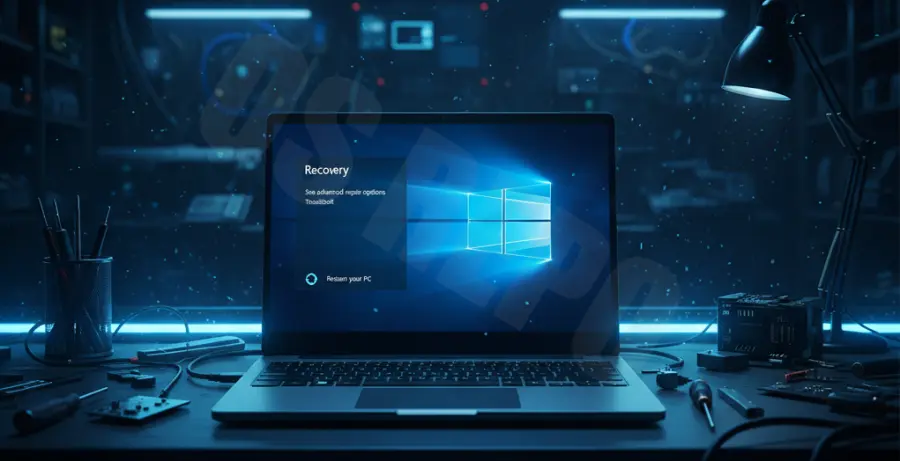
If the immediate fixes do not work, you must access the Windows Recovery Environment (WinRE). Since you cannot log in, force the PC to shut down three times in a row during the boot-up sequence. On the fourth attempt, Windows will enter “Automatic Repair” mode.
Run System File Checker
From the WinRE menu, navigate to Troubleshoot > Advanced Options > Command Prompt. Use the following commands to repair system files that may be preventing the login screen from loading:
sfc /scannow
chkdsk c: /f
dism /online /cleanup-image /restorehealth
Boot into Safe Mode with Networking
Safe Mode loads a minimal set of drivers. In the Advanced Options menu, select Startup Settings > Restart and then press 5 or F5 for Safe Mode with Networking. Once inside, you can uninstall recent display driver updates via the Device Manager.
If all else fails, use the System Restore option found in the Advanced Options menu. Choose a restore point created before the black screen issue began to roll back registry and driver changes without affecting your personal files.