| Issue | Quick Fixes |
|---|---|
| Pixel 9 Pro Overheating Message | Remove the case, disable 5G, update system software, and limit camera use in direct sunlight. |
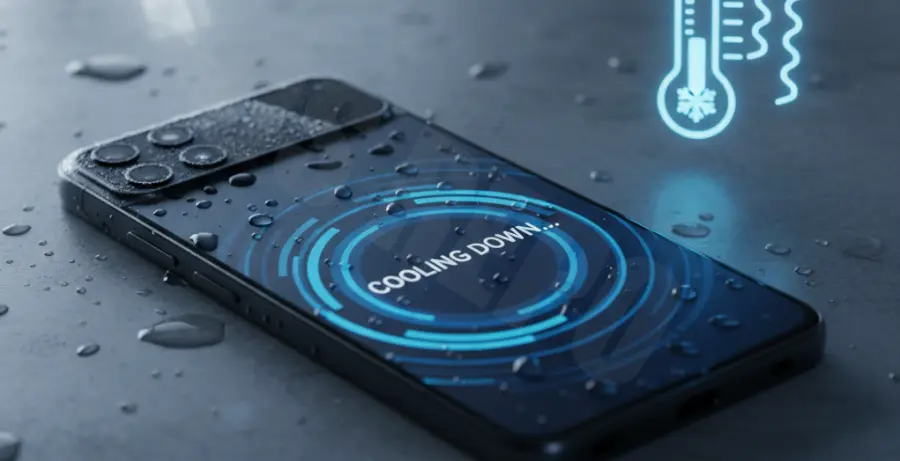
What is the Pixel 9 Pro Overheating Message?
The Pixel 9 Pro overheating message is a built-in safety notification. It triggers when the internal temperature of the Google Tensor G4 chip reaches a threshold that could potentially damage hardware or degrade battery health.
When this happens, your phone may limit certain features. You might notice the screen dimming, the camera flash being disabled, or the 5G connection slowing down. In extreme cases, the phone will shut down entirely to protect itself.
This message is common during initial setup, high-resolution video recording, or intense gaming. However, if it happens during casual browsing, it indicates a software conflict or an environmental issue.
Step-by-Step Solutions
1. Control the Environment
Heat dissipation is the first step. Remove your protective case, as some materials trap heat against the glass back. Move the device to a cooler area and avoid charging while the phone is already warm.
2. Disable 5G Connectivity
In areas with weak signal, the Pixel 9 Pro modem works harder to stay connected. This generates significant heat. Switching to LTE can drastically reduce the temperature.
# While there is no direct ADB command to toggle 5G,
# you can reset the network stack to clear thermal-inducing loops
adb shell cmd phone restart-modem
3. Check for Background Battery Drain
A “rogue” app might be stuck in a high-CPU usage loop. Go to Settings > Battery > Battery Usage to identify any app consuming more than 5-10% in the background. Force stop these apps or uninstall them.
4. Update System and Play Services
Google frequently releases thermal optimization patches. Ensure your device is running the latest version of Android. Additionally, clearing the cache of Google Play Services can resolve background sync issues that cause overheating.
# Clear Google Play Services cache via ADB
adb shell pm clear com.google.android.gms
5. Use “Smooth Display” Judiciously
The 120Hz refresh rate on the Pixel 9 Pro is beautiful but intensive. If you are in a hot climate, navigate to Settings > Display and toggle off Smooth Display to lower the GPU workload and reduce heat output.