Symptoms & Diagnosis
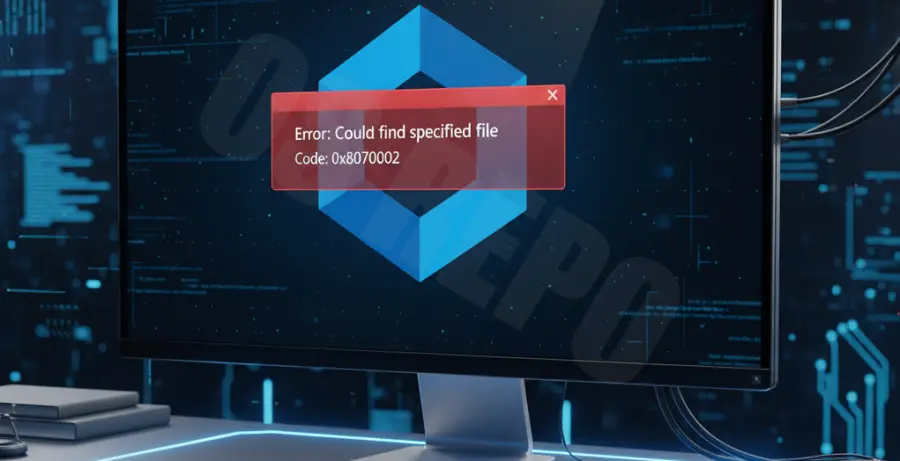
The VS Code installation error 0x80070002 is a common Windows error code that translates to “ERROR_FILE_NOT_FOUND.” This typically occurs when the installer expects a specific file or directory to exist, but the system cannot locate it.
You will usually see a pop-up dialog during the extraction or installation phase of Visual Studio Code. The process halts abruptly, leaving the software partially installed or not installed at all.
Common triggers include corrupted setup files, insufficient user permissions, or conflicting third-party antivirus software that “quarantines” installer components prematurely. Inconsistent registry entries from previous installations can also cause this disruption.
Troubleshooting Guide
To resolve this error, we must identify where the file path disconnection is occurring. Start with the most common fixes outlined in the table below.
| Method | Action | Goal |
|---|---|---|
| Run as Administrator | Right-click installer > Run as Admin | Bypass permission restrictions |
| Clear Temp Files | Delete contents of %temp% folder | Remove corrupted cached installers |
| Disable Antivirus | Turn off Real-time protection | Prevent false-positive file blocking |
Step 1: Clear the Installer Cache
Corrupted temporary files are the leading cause of the 0x80070002 error. You should clear your local temp directory before attempting a clean reinstall.
# Open the Run dialog (Win + R), type this, and press Enter:
%temp%
# Delete all files in the resulting folder.
Step 2: Switch Installer Types
Visual Studio Code offers two main installers: User and System. If the User installer fails with error 0x80070002, the System installer often succeeds because it places files in “Program Files” rather than “AppData.”
Download the “System Installer” from the official VS Code website. This version installs for all users and typically bypasses local profile path issues.
Step 3: Verify Windows Update Services
Sometimes this error is linked to the Windows Update service being disabled. Ensure that the “Background Intelligent Transfer Service” (BITS) is running in your Services console.
Prevention
To avoid seeing error 0x80070002 in the future, always download the installer directly from the official Microsoft VS Code website rather than third-party mirrors.
Ensure your Windows OS is fully updated. Missing system patches can lead to API mismatches that cause the installer to look for files that don’t exist in older Windows builds.
Finally, always uninstall previous versions of VS Code completely before upgrading if you have a history of installation errors. Use the “Add or Remove Programs” utility to ensure a clean slate.