Immediate Fix
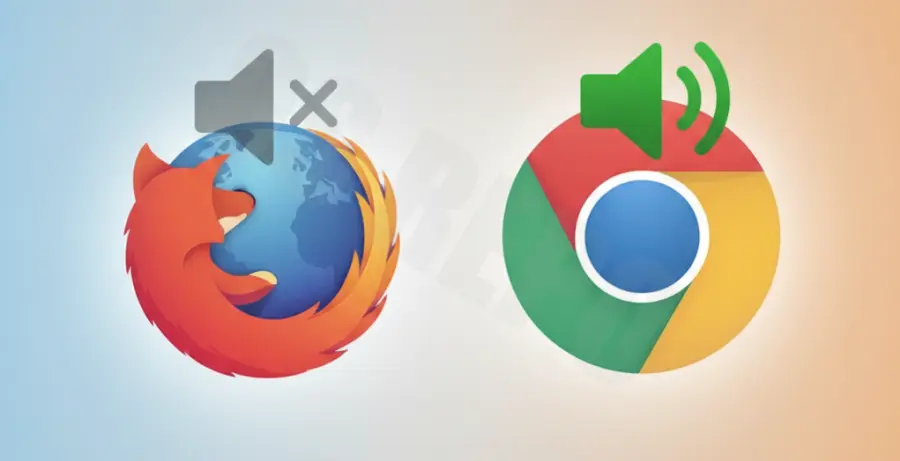
If Firefox is silent while Chrome plays audio perfectly, the issue is likely a specific application setting within your operating system. Unlike Chrome, Firefox can sometimes be muted individually in the system mixer.
| Checkpoint | Action |
|---|---|
| OS Volume Mixer | Right-click the speaker icon (Taskbar) > Open Volume Mixer. Ensure Firefox is not muted. |
| Firefox Tab Mute | Check if a speaker icon with a slash appears on the browser tab. Right-click and select “Unmute Tab.” |
| Output Device | Ensure Windows “App volume and device preferences” hasn’t assigned Firefox to a disconnected output. |
Most users find that Firefox was simply muted in the Windows Volume Mixer while Chrome remained active. This happens because Windows treats every browser as a separate audio source.
Technical Explanation
Chrome and Firefox utilize different engine architectures for processing media. Chrome relies on the Chromium engine, which often has tighter integration with system audio drivers. Firefox uses the Gecko engine, which manages audio streams through its own internal “sandbox.”
If the Firefox sandbox cannot communicate with your sound card’s “Exclusive Mode,” the audio stream fails. This creates a scenario where Chrome successfully “hijacks” the audio driver, but Firefox is blocked from sending its signal.
Additionally, Firefox is more sensitive to sample rate mismatches. If your Windows sound settings are set to a sample rate higher than 192kHz, Firefox may stop producing sound entirely while Chrome downsamples the audio automatically.
Alternative Methods
If the volume mixer is not the culprit, you may need to force-reset Firefox’s audio configurations. This can be done via the advanced configuration editor.
Reset Audio Prefs
Open a new tab and type the following into your address bar:
about:configSearch for media.volume_scale and ensure the value is set to 1.0. If it is set to 0, Firefox will be permanently muted regardless of system settings.
Disable Hardware Acceleration
Sometimes, Firefox’s hardware acceleration conflicts with audio-visual synchronization. To fix this, go to Settings > General. Scroll down to Performance, uncheck “Use recommended performance settings,” and then uncheck “Use hardware acceleration when available.”
Restart Firefox after making these changes to ensure the audio backend re-initializes correctly without driver interference.