Symptoms & Diagnosis
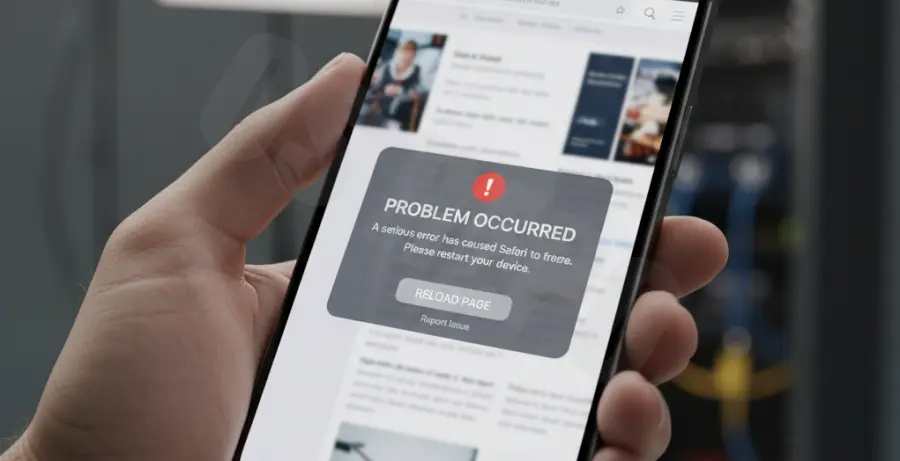
Users of the iPhone 16 Pro have reported instances where the Safari browser unexpectedly closes, returning them to the Home Screen. This “crash to desktop” behavior often occurs without warning or error messages.
Common triggers include opening multiple high-resolution image tabs, interacting with complex JavaScript elements, or attempting to use the address bar immediately after launching the app. This suggests a potential conflict between the A18 Pro chip’s memory management and specific WebKit processes.
Diagnosis usually points to a corrupted cache or a mismatch in the experimental features enabled by default in iOS 18. If the crashing persists across all websites, the issue is likely rooted in the local application state rather than external web servers.
Troubleshooting Guide
To resolve Safari instability on the iPhone 16 Pro, you should start with the least intrusive software resets. Follow the structured steps below to clear the application environment.
1. Force Restart the Device
A force restart clears the temporary memory and reinitializes the hardware-software handshake. This is more effective than a simple power-off for resolving kernel-level glitches.
# Sequence for iPhone 16 Pro Force Restart:
1. Press and quickly release Volume Up.
2. Press and quickly release Volume Down.
3. Press and hold the Side Button until the Apple logo appears.
2. Clear Safari Cache and Website Data
Residual data from previous iOS versions or faulty cookies can cause the browser to hang. Clearing this data often stops the crashing loop immediately.
| Action | Navigation Path |
|---|---|
| Clear History | Settings > Safari > Clear History and Website Data |
| Close All Tabs | Toggle “Close All Tabs” during the clearing process |
| Advanced Reset | Settings > Safari > Advanced > Website Data > Remove All |
3. Disable Experimental WebKit Features
The iPhone 16 Pro ships with several beta features enabled in the Safari engine. Disabling these can significantly improve stability if you are experiencing crashes on specific media types.
Navigate to Settings > Safari > Advanced > Feature Flags. Tap “Reset All to Defaults” at the bottom of the list to ensure no unstable experimental protocols are interfering with your browsing session.
Prevention
Once you have stabilized Safari, you should take steps to prevent recurrence. Keeping your iPhone 16 Pro updated to the latest version of iOS 18 is critical, as Apple frequently releases “point” updates to fix WebKit memory leaks.
Limit the number of active browser extensions. Third-party ad blockers and password managers can occasionally conflict with the A18 Pro’s security architecture. Try enabling them one by one to identify the culprit.
Finally, avoid keeping hundreds of tabs open for extended periods. While the iPhone 16 Pro features high RAM capacity, Safari’s background processes can still become overwhelmed by unoptimized websites, leading to a system-initiated app termination.