Symptoms & Diagnosis
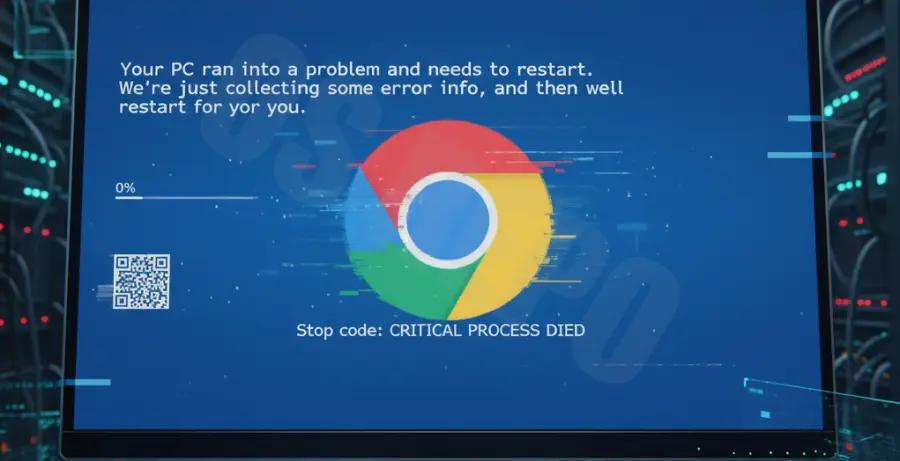
Experiencing a Blue Screen of Death (BSOD) while using Google Chrome is often a sign of a critical failure between the browser’s rendering engine and your system’s graphics drivers. This usually occurs when Chrome attempts to use your GPU for hardware acceleration, but the driver fails to respond in time.
Common Windows stop codes associated with this specific issue include VIDEO_TDR_FAILURE, DPC_WATCHDOG_VIOLATION, and SYSTEM_SERVICE_EXCEPTION. These errors typically trigger when watching high-definition videos (YouTube/Netflix) or interacting with 3D web content.
| Symptom | Possible Cause |
|---|---|
| Browser Freezing | GPU driver timeout during rendering. |
| Screen Flickering | Incompatible hardware acceleration settings. |
| System Restart | Kernel-level crash caused by DirectX conflicts. |
Troubleshooting Guide
Disable Hardware Acceleration
The most immediate fix is to prevent Chrome from accessing your GPU directly. Open Chrome and navigate to Settings > System. Locate the toggle for “Use graphics acceleration when available” and switch it to Off. Relaunch the browser to apply changes.
Update Graphics Drivers
Outdated or corrupted GPU drivers are the leading cause of BSODs in Chrome. You can check your current display adapter status and driver version using the following command in PowerShell to identify if an update is required:
Get-WmiObject Win32_VideoController | Select-Object Name, DriverVersion, StatusVisit the official website of your GPU manufacturer (NVIDIA, AMD, or Intel) to download and install the latest “Game Ready” or “Studio” driver package. A clean installation is recommended to remove legacy file fragments.
Reset Chrome Flags
If you have modified experimental features, they may be causing instability. Type chrome://flags in the address bar and click “Reset all” at the top right of the page. This reverts GPU-related experiments like “GPU rasterization” to their default state.
Prevention
To prevent future hardware acceleration crashes, keep your Windows operating system updated. Microsoft regularly releases patches that improve the Windows Display Driver Model (WDDM) stability.
Avoid running multiple hardware-accelerated applications simultaneously. For instance, having a high-end video game open while streaming 4K video in Chrome can overwhelm the GPU’s scheduler, leading to a TDR (Timeout Detection and Recovery) crash.
Regularly monitor your hardware temperatures. Overheating can cause the GPU to throttle or disconnect momentarily, which Chrome interprets as a fatal error, triggering the Blue Screen.