Symptoms & Diagnosis
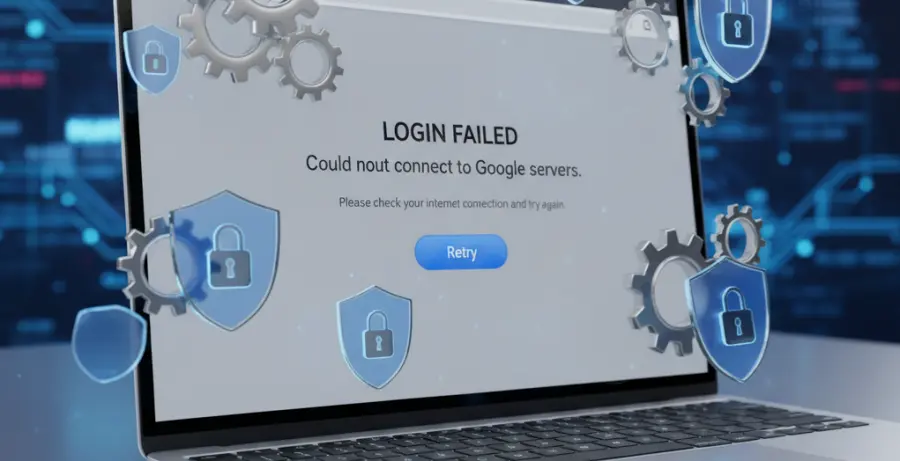
The “Temporary Error” during Google Chrome login is a common frustration for users trying to sync bookmarks, passwords, and history across devices. Usually, this error appears as a pop-up stating, “Service is temporarily unavailable,” or “Something went wrong.”
Diagnosing the root cause involves looking for specific triggers. Common symptoms include being stuck in a login loop, seeing a “Sync is paused” message in the top-right corner, or receiving an error code such as 400 or 500 when attempting to authenticate with Google services.
Before proceeding, verify if the issue is local or server-side. Check your internet connection and ensure your Google account is not locked by trying to log in via an Incognito window or a different browser.
Troubleshooting Guide
Follow these steps to resolve the Chrome login failure. Start with the simplest fixes and move toward more technical solutions if the error persists.
1. Verify System Date and Time
Chrome relies on SSL certificates to secure your login. If your computer’s date or time is incorrect, the security handshake will fail, resulting in a temporary login error. Ensure your system is set to “Set time automatically.”
2. Clear Browser Data
Corrupted cookies or an overloaded cache often block the authentication process. Use the table below to identify what data needs to be cleared for an effective reset.
| Data Type | Recommended Action | Impact |
|---|---|---|
| Browsing History | Optional | Removes list of visited sites. |
| Cookies & Site Data | Required | Signs you out of most websites. |
| Cached Images/Files | Required | Forces Chrome to reload fresh assets. |
3. Disable Interfering Extensions
Some security or ad-blocking extensions can interfere with Google’s login scripts. You can test if an extension is the culprit by launching Chrome from the command line with all extensions disabled.
# For Windows (Command Prompt)
start chrome --disable-extensions

# For macOS (Terminal)
open -a "Google Chrome" --args --disable-extensions
4. Reset Chrome Settings
If the error remains, a full reset of the browser settings may be necessary. This reverts your startup page, new tab page, search engine, and pinned tabs. It also disables all extensions and clears temporary data like cookies.
To do this, navigate to Settings > Reset settings > Restore settings to their original defaults and confirm the action.
Prevention
To prevent future Chrome login errors, keep your browser updated to the latest version. Google frequently releases patches that address authentication bugs and security vulnerabilities.
Avoid installing excessive third-party extensions from unverified sources. Many “temporary” errors are actually caused by poorly coded extensions that conflict with Chrome’s background sync processes.
Finally, ensure that your firewall or antivirus software is not blocking Google’s authentication URLs. Whitelisting `accounts.google.com` can solve many persistent connectivity issues.