| Method | Success Rate | Difficulty |
|---|---|---|
| Toggle Game Center Sign-out | High | Easy |
| Force Restart Device | Medium | Easy |
| Reset Network Settings | High | Medium |
| Update to iOS 18.1/Latest | Very High | Medium |
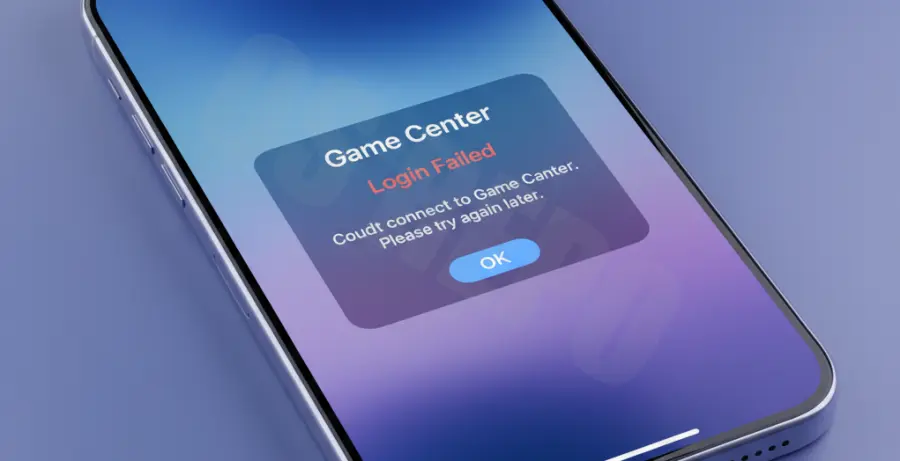
What is the iOS 18 Game Center Login Error?
The iOS 18 Game Center login error is a common synchronization issue that prevents users from accessing their gaming profiles, leaderboards, and saved progress. It typically manifests as a “Login Failed” pop-up or a persistent loading spinner in the Settings app.
With the release of iOS 18, Apple introduced deeper integration for Game Center, but this has led to some authentication handshake errors between the device and Apple’s servers. These glitches often occur due to corrupted cache files or mismatched Apple ID credentials following the system update.
Step-by-Step Solutions
1. Sign Out and Re-authenticate
Refreshing your session is the most effective way to clear authentication tokens. This forces the system to re-verify your Apple ID permissions.
# Navigation Path
Settings > Game Center > Scroll to Bottom > Sign Out
# Action
Toggle "Game Center" OFF then back ON
2. Reset Network Configuration
Sometimes, DNS settings or corrupted network caches prevent the device from reaching the Game Center servers. Resetting these settings often clears the “Login Failed” loop.
Navigate to Settings, then General, and select Transfer or Reset iPhone. Choose Reset, then tap Reset Network Settings. Note that this will remove saved Wi-Fi passwords.
3. Toggle Airplane Mode for IP Refresh
A simple IP refresh can sometimes bypass local routing issues that block Game Center login requests. Use the Control Center to toggle Airplane Mode for 30 seconds.
# Quick Refresh Command
Control Center > Airplane Mode ON > Wait 30s > Airplane Mode OFF
4. Verify Apple System Status
Before assuming the issue is with your hardware, ensure Apple’s servers are operational. If the Game Center service shows a yellow or red dot, you must wait for a server-side fix.
Visit the official Apple System Status page. Look for “Game Center” in the list. If it is green, proceed with local troubleshooting; if not, the issue is on Apple’s end.
5. Force Restart the Device
A force restart clears the temporary RAM and stops all background processes that might be interfering with the Game Center login daemon.
Press and quickly release the Volume Up button, then the Volume Down button. Finally, press and hold the Side button until the Apple logo appears on the screen.